Set it up in OBS
About ten minutes the first time. You add two things to OBS: the control panel as a dock, and the draft screen as a Browser Source. They find each other on their own.
Before you start
- OBS Studio 28 or newer. Older versions have no Docks menu for web pages. Update from obsproject.com if you are not sure.
- Canvas set to 1920 x 1080. In OBS go to Settings, Video, and set Base (Canvas) Resolution to 1920 x 1080. Every layout is drawn at that size.
- Pick your look first. Choose a layout on the Draft studio page, or build one in the Create studio. The addresses below change with your choice, so copy them from there.
- The panel and the draft screen live in the same OBS. Add both to the OBS you stream from. Want to run the draft from your phone? That works too, through the dock (step 8).
1 Add the panel as a dock
The panel is where you pick bans, picks and scores. It sits inside OBS like any other dock.
- In OBS open the Docks menu (in some versions it is under View, then Docks) and choose Custom Browser Docks.
- In the window that opens, type a name in Dock Name, such as
Draft panel. - Paste this address into URL:
- Press Apply, then close the window. The panel appears as a dock. Drag it where you want it, or pop it out onto a second monitor.
Do not open the panel in Chrome or Edge instead. A panel in a normal browser keeps its own storage and cannot talk to OBS.
2 Add the draft screen
This is the picture your viewers see.
- In the Sources box press + and choose Browser. Name it something like
Draft screen. - Copy the draft screen address from the Draft studio page (or from the preview box in the Create studio) and paste it into URL.
- Set the options like this:
| Local file | Off |
| Width and Height | 1920 and 1080 |
| FPS | 30 is fine. Use 60 only if your stream is 60. |
| Custom CSS | Leave what OBS put there. It keeps the background clear. |
| Shutdown source when not visible | Off |
| Refresh browser when scene becomes active | Off |
Press OK. If the source looks smaller than the screen, right click it in the preview, choose Transform, then Fit to Screen.
3 Layers and cameras
The draft screen is see-through wherever a camera or game feed belongs. So your camera has to sit underneath it.
- In the Sources list, things higher up are in front. Put Draft screen above your camera, game capture or caster feeds.
- Resize your camera sources so they fill the holes in the layout. The preview in the Create studio shows where the holes are.
- Your own logo, colors and the backdrop are set in the Create studio and travel in the address, so there is nothing else to load.
4 Check the link
Look at the top of the panel dock.
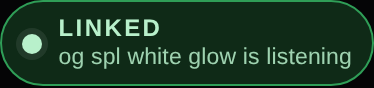
- LINKED means the draft screen is loaded and listening. Click a god in the panel and the screen changes within a moment.
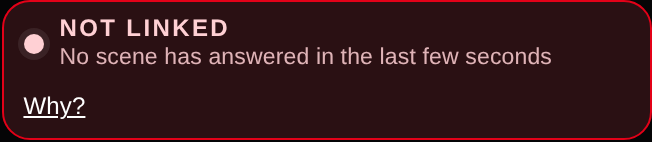
- NOT LINKED means no screen has answered in the last few seconds. See the fixes below.
No OBS handy? Open the panel in one browser tab and the draft screen address in another tab of the same browser. They link up the same way, which makes a quick test.
5 Scorebug (optional)
The in game bar with names, series score and bans. Add it as a second Browser Source the same way, with its own address from the Scorebug page. Use the size shown there. It reads the same panel, so you do not add anything else.
6 Draft recap card (optional)
Both teams' picks and bans on one card. Add https://smiteprod.com/scene_recap.html as another Browser Source, 1920 x 1080, on top of the draft scene or in its own scene. The panel's DRAFT RECAP CARD box picks when it shows (Auto shows it once all ten picks are in) and has a Download PNG button for socials.
7 Screen reading scorebug (experimental, optional)
A solid custom scorebug that covers the game's top bar and fills in the timer, kills, gold and Gold Fury pips by reading your game capture. Nothing is shared or sent anywhere, and it never touches the game.
- Add https://smiteprod.com/scene_livebug.html as a Browser Source, 1920 x 1080, above your game capture.
- In OBS open Tools, WebSocket Server Settings and tick Enable WebSocket server. Press Show Connect Info and copy the password. This is how the panel gets the picture of your game capture.
- In the panel tick "I'm using the screen reading scorebug", paste the password and press Connect. It finds your game capture by itself and the numbers start showing in the panel.
Caster bug, colors and size are in the same panel box. More on the Scorebug page.
8 Phone control (optional)
Run the draft from your phone while OBS keeps going on your PC.
- In the panel dock in OBS, find the PHONE CONTROL box and press Get a code.
- Scan the QR code with your phone, or open the link it shows. You can also type the 6 character code on your phone and press Join.
- Pick and ban on your phone. The dock passes every change to the draft screen.
Keep the dock open in OBS the whole time. The code is only for you and is forgotten after a day with nobody connected.
9 Brackets (optional)
Make a bracket on the Bracket builder page in the style of your layout. Then pick one way to show it:
- Live link: press Make a live link, copy the For OBS address and add it as a Browser Source, 1920 x 1080. It updates on its own while you type scores.
- HTML file: press Download HTML file, then add a Browser Source with Local file ticked and pick the file. It has its own Edit button.
Need every screen for a full esports broadcast? See the free Broadcast packages.
Why it stays yours
The addresses are the same for everyone, so people sometimes ask how two casters do not collide. The answer is that your draft stays on your own PC while you run it.
- When you click in the panel, it saves the draft in OBS's own browser storage on your computer.
- The draft screen checks that same storage a few times a second and redraws when it changes.
- There is no server in the middle. Each person's OBS has its own storage, so your draft and someone else's never touch.
The catch: the panel dock and the draft screen have to be in the same OBS on the same PC. Phone control (step 8) is the one exception: your phone sends the draft to your own dock through a private code, and the dock passes it on.
Fixes
Make sure the draft screen is in the scene you are looking at, that it is not hidden (the eye icon), and that "Shutdown source when not visible" is off. Then right click the source and choose Refresh cache of current page.
You may have opened OBS with a different profile, or a portable copy. Each one has its own storage, so add the dock and source again in the one you stream from.
Check the address was pasted whole, starting with https. Then check that Local file is off. Text should show on transparent, not black. If there is a solid color, clear the Custom CSS box back to what OBS gave you.
You probably have the panel open in a normal browser. Use the dock inside OBS, as in step 1.
Move Draft screen higher in the Sources list than the camera. See step 3.
Google Fonts load by themselves. A font installed on your PC works on that PC only. If a font name is not found, the layout falls back to its own font.
Copy the new address from the studio and paste it into the source's URL. The address is what decides the look.